Litematica (.litematic) to .schem converter
Convert a Litematica project into a Sponge .schem file in the browser, including supported palettes and the relative placement of multiple regions.
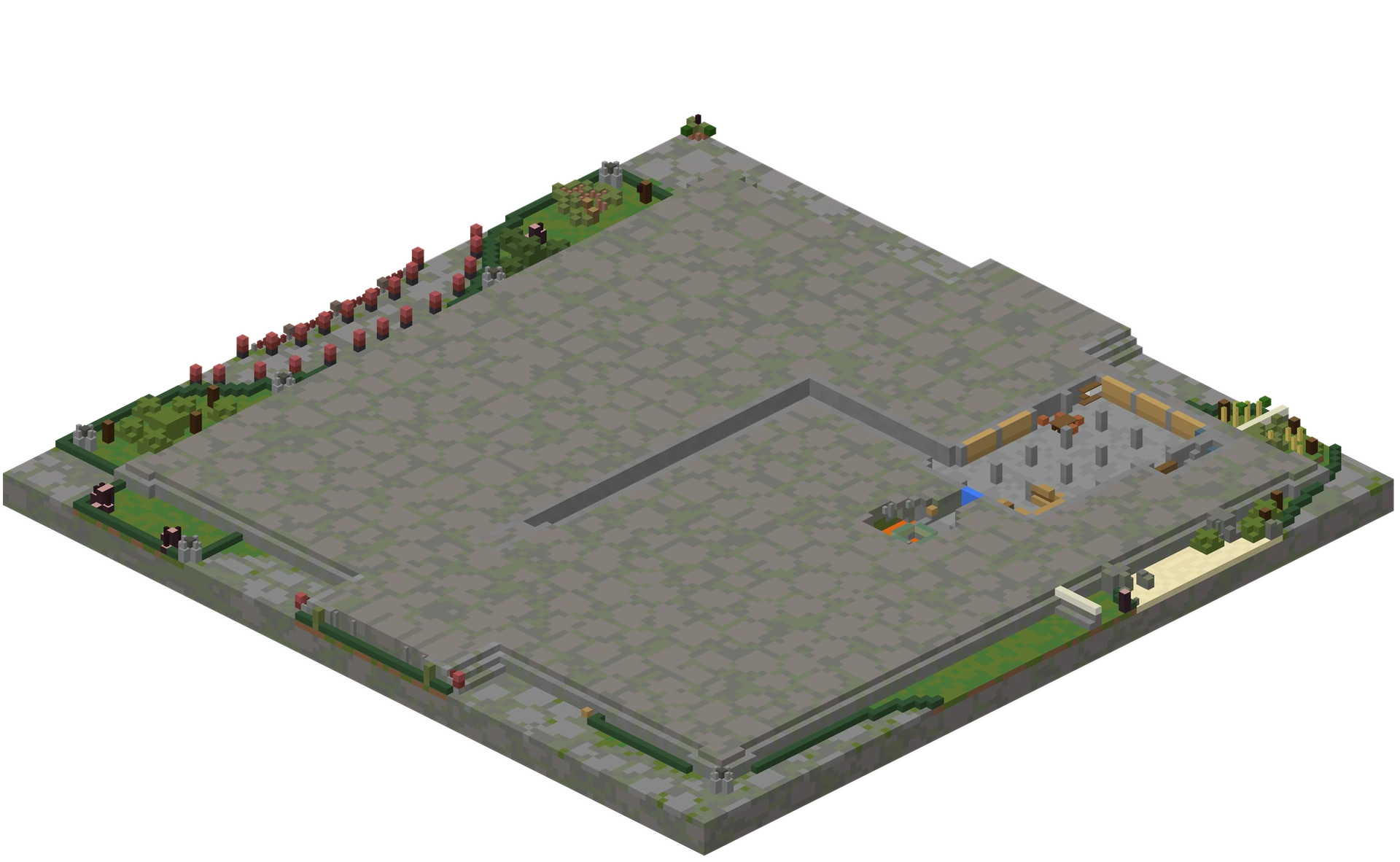
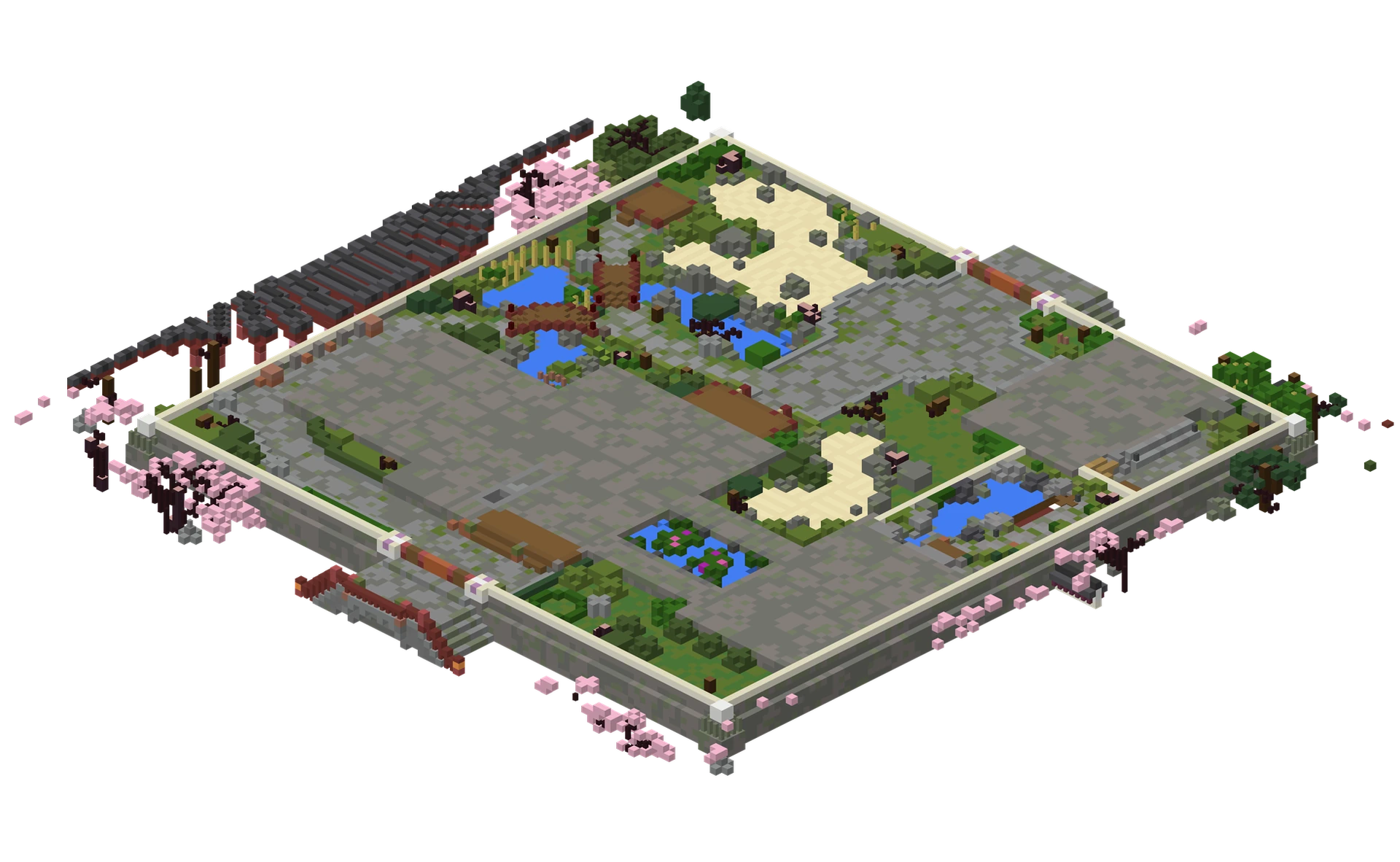
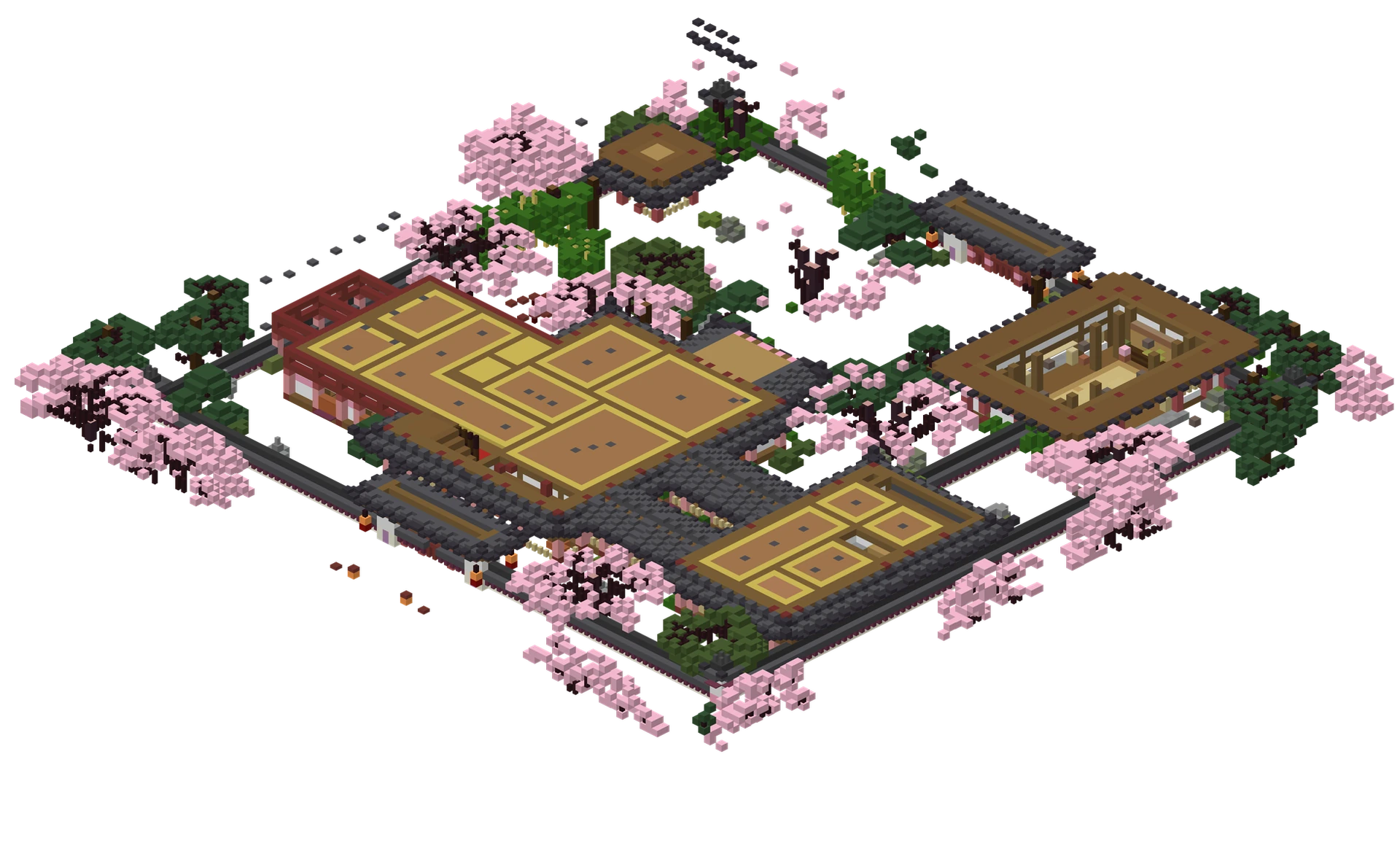
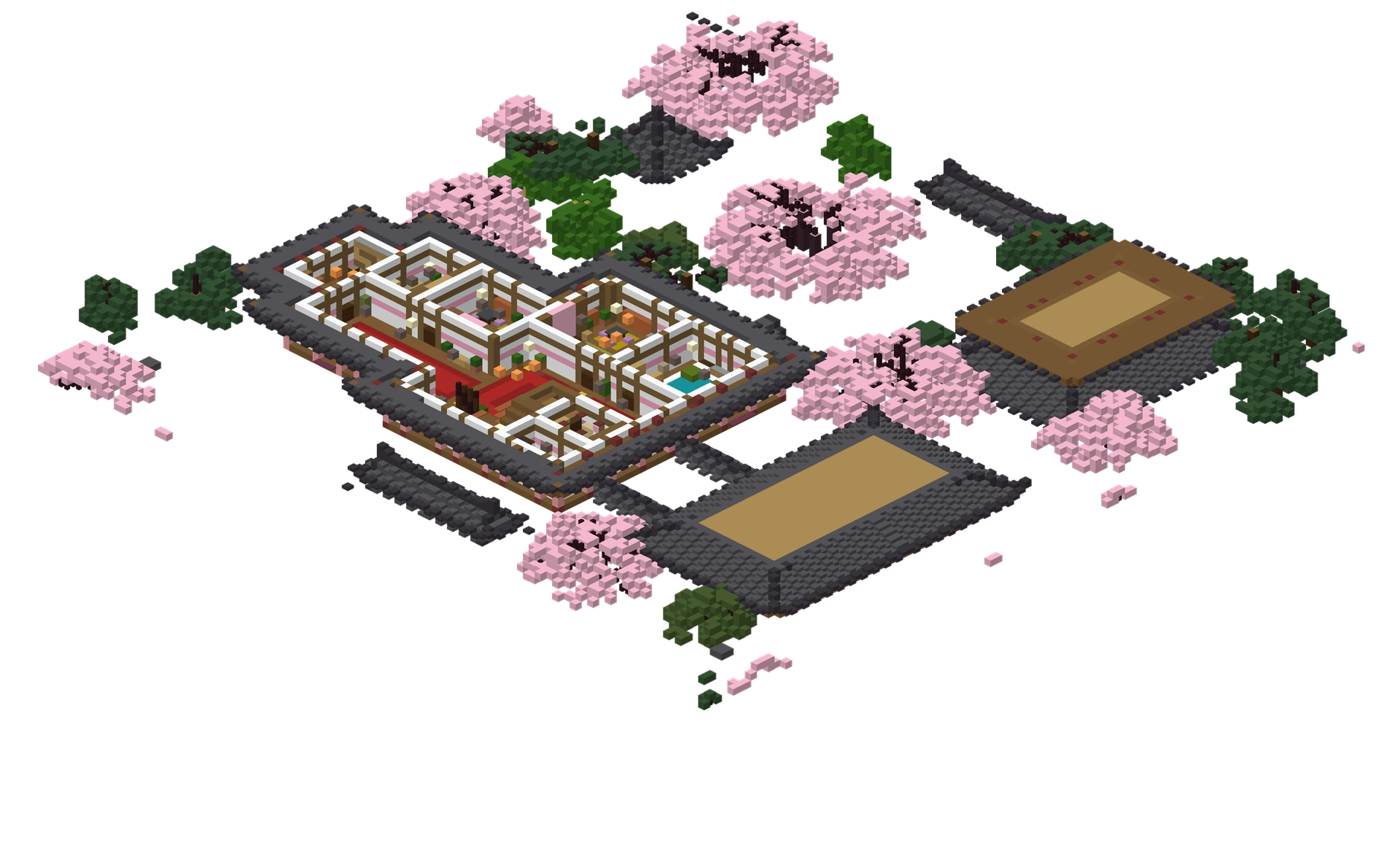
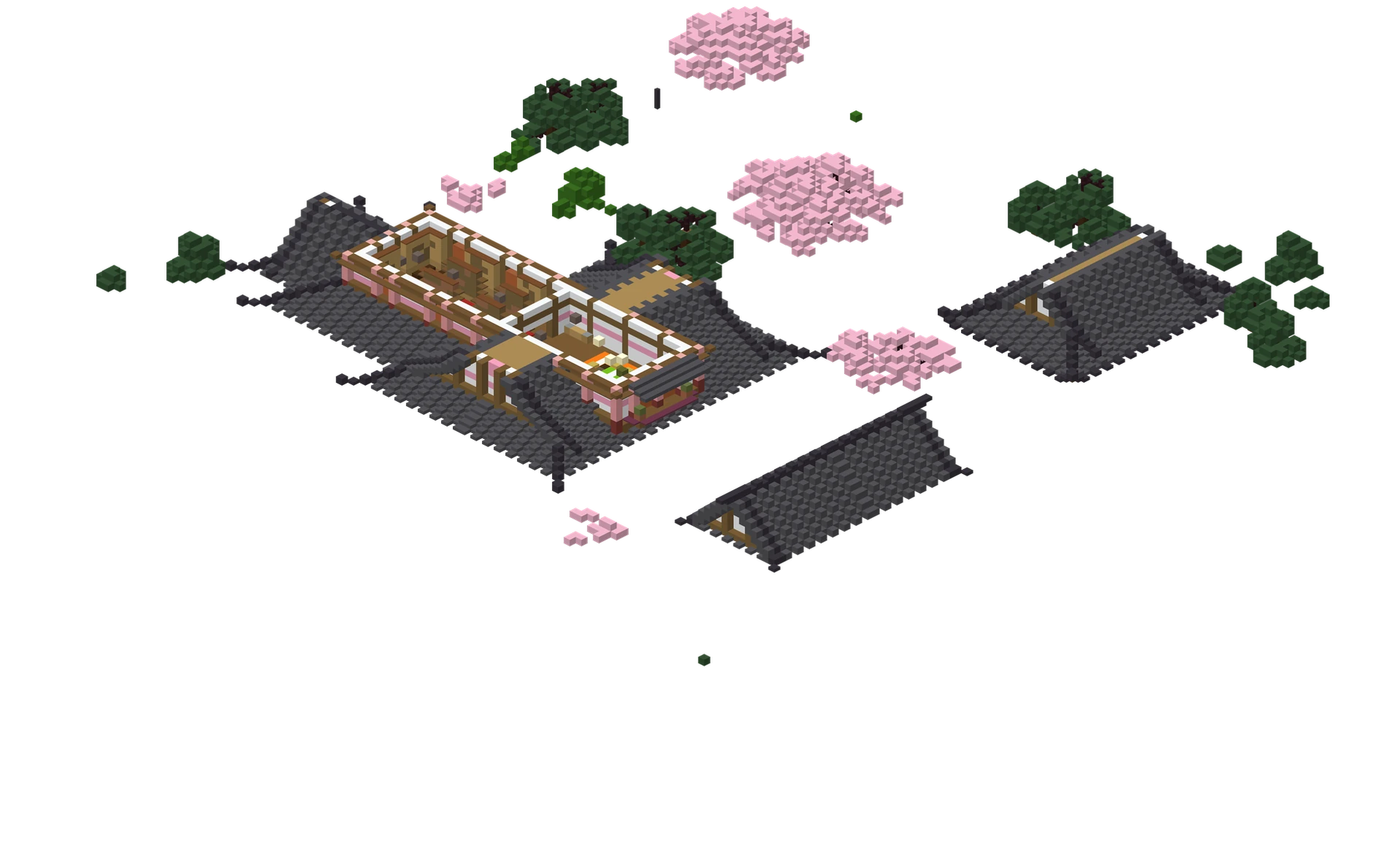
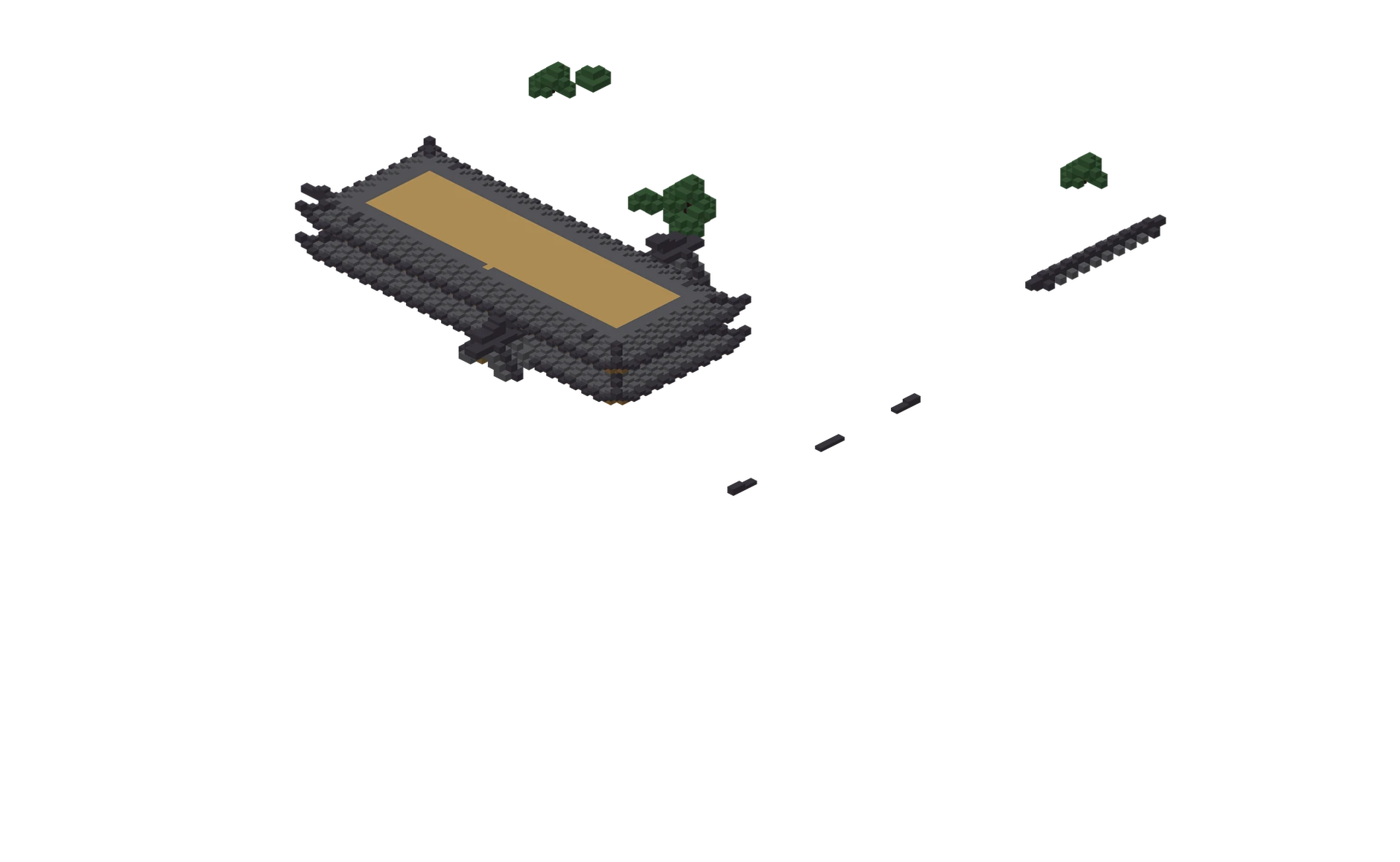
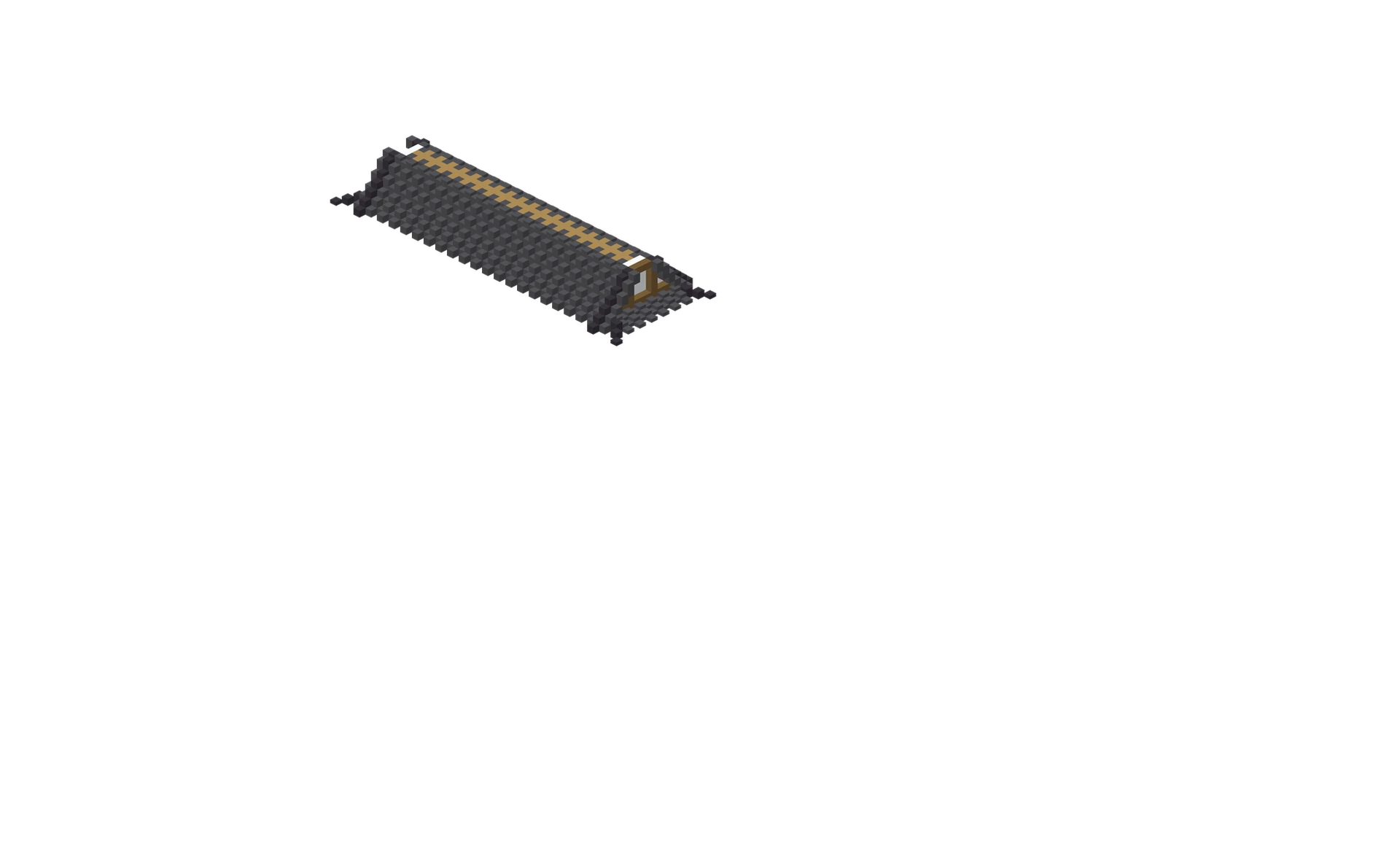
Maximum source file size: 200 MB. Practical browser memory limits vary by device.
Built for accurate
inspection.
- 01Multiple Litematica regions
- 02Relative schematic origins
- 03Material counts and layer inspection
Where the format comes from
Litematica creates this format for modern Java Edition building workflows. A project can hold several named regions, each with its own size, position and block-state palette, so one file often describes a whole build site rather than a single box.
What Schematic Studio keeps · and its limits
The viewer keeps region geometry, palette block states and relative coordinates where supported, and combines the regions in one scene. The converter writes the selected result as Sponge .schem; it does not write a new .litematic file.
How the conversion works
Litematica can store several named regions with independent positions. The converter first reads those regions, builds one bounded selection and lets you review the result before writing the Sponge palette. It does not overwrite the original and does not create a new Litematica file.
Check before you paste
Check unexpected gaps against the original region placement. Modded block names can remain in a palette but will only work where the destination server or client recognizes them.
How to use it.
Choose your file in the viewer or converter.
Review dimensions, origin and block totals before rendering.
Inspect layers, materials and camera angles · or export a selected world area.
Common questions.
Can I open a .litematic without Minecraft?
Yes. Choose the file in the 3D viewer; it is parsed in your browser and every region appears in one scene.
Does Schematic Studio write .litematic files?
No. The converter exports Sponge .schem only. Your original .litematic file is never modified.
Why does a large file fail to open?
Dense builds can exceed browser memory or GPU capacity even below the 200 MB limit. Close other heavy tabs, try a smaller selection, or see Troubleshooting.
Private
by default.
File parsing starts in your browser. Nothing appears in Explore unless you deliberately publish it from a verified creator account.